From your files and mail to one short list.
Every step in order, from the folders Hyplr asks to read to what happens if you stop.
-
Allow your folders
Hyplr starts with your Desktop, Downloads and Documents, and your screenshots. macOS asks you once for each folder. Reading never moves or changes a file.
Never read: code projects, app libraries such as Photos, Final Cut and Lightroom, and app folders. Files kept only in iCloud: their names only, never downloaded.
-
Add your mail
Bills arrive by mail, and so do the emails that prove you paid them.
Before you connect Gmail, Hyplr shows you what it reads, what for, what it keeps and where it goes.
Apple Mail: turn on Hyplr in Mail’s settings, and new mail in every account in Mail — iCloud, Outlook, work — is read as it arrives.
Without mail, bills stay open until you mark them Done.
-
Hyplr reads
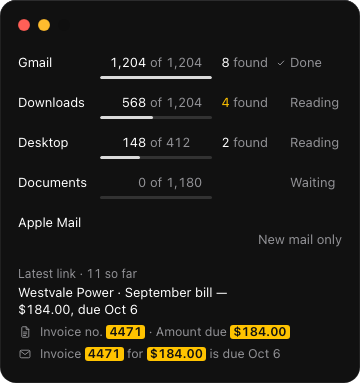
You see each source with its count, what’s found so far and the time left. The newest and most likely bills come first; older files follow in the background.
Reading pauses on battery, in Low Power Mode and when your Mac gets warm, and goes on by itself.
-
Your summary
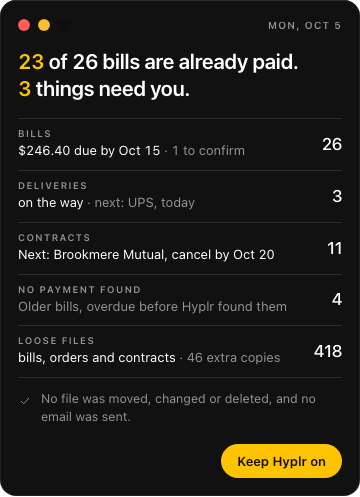
Hyplr tells you where you stand: what’s already handled, then what needs you. Every number opens the list behind it.
“23 of 26 bills are already paid. 3 things need you.”
No file was moved, changed or deleted, and no email was sent.
-
Keep Hyplr on
Start your free week when you’re ready — with no card. Then choose Pro, or a one-time Deep review. From then on, Hyplr lives in the menu bar.
At most one notification a day, between and , with counts — never amounts or names.

-
Every day
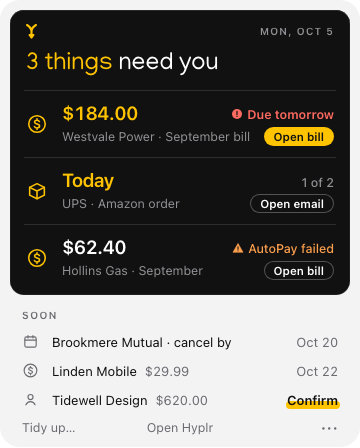
The panel shows what needs you now and what’s coming soon. The window adds This Week, Closed, the Map with every supplier and its bills, and Activity, with what Hyplr linked and why.
Why, on every card: the document and the email it came from, with the matched values marked. Something wrong? Fix it, or say it’s not a bill — Hyplr remembers your decision.
-
When proof arrives
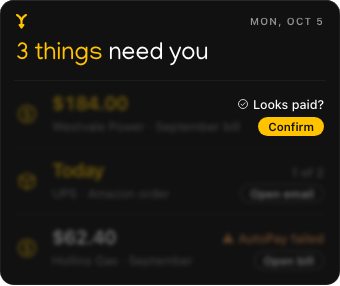
When the payment email arrives, Hyplr asks: “Looks paid?” Confirm, and the bill closes with the proof kept. Every close can be brought back.
-
Tidy up, if you want
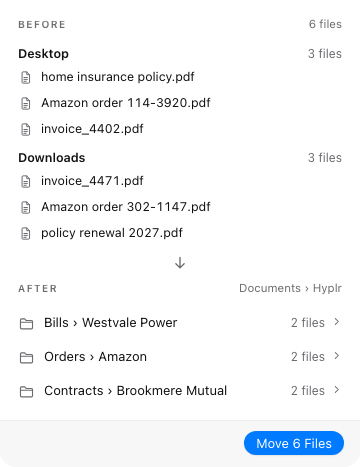
With Tidy up, your loose bills, orders and contracts go into Documents › Hyplr, one folder per supplier, after you’ve seen every move. Nothing is deleted, and Undo is free, at any time.
-
If you stop
When your free week ends or you cancel, the panel pauses after its last day: Hyplr reads nothing new and sends no notifications until you choose a plan. Your files and mail stay where they were, and Undo for Tidy up stays free.
Delete your data
Hyplr is coming to the Mac.
For Macs with Apple silicon and Apple Intelligence, on macOS Tahoe 26 or later.